Jango VPN features
What each feature does, why it helps, and where to find it in the app. The labels on this page are the ones you see on your phone.
Overview
Everything in the app, at a glance
Jango VPN is a small app on purpose. Choose a feature to read what it is, why it helps and how to use it.
Encryption
An encrypted connection between your phone and our servers
Jango VPN uses the WireGuard protocol. While you are connected, the traffic of your phone is encrypted on its way to our VPN server. The server sends it on to the internet, so websites and apps see the address of the server instead of yours.
Why it helps
On Wi-Fi that you share with strangers, in a café, a hotel or an airport, the tunnel keeps other people on that network from reading your traffic. Our guide to VPNs on public Wi-Fi shows what that covers.
What encryption means here
The encryption covers one stretch of the way: from your phone to our VPN server. After the server, traffic is protected only if the site or app uses HTTPS.
A VPN does not make you anonymous. Sites can still recognize you when you sign in, or through cookies. See what a VPN hides, and what it does not.
How to use it
- Open Jango VPN and tap the power button.
- Wait until the status reads “Protected”. From then on your other apps use the encrypted tunnel.
- There is no protocol to choose and no key to type in. The app creates its key on your phone. The private key is stored encrypted on the phone and is never sent to us.
New to the protocol? Read What is WireGuard?
Connect
One tap to connect, with “Fastest server” as the default
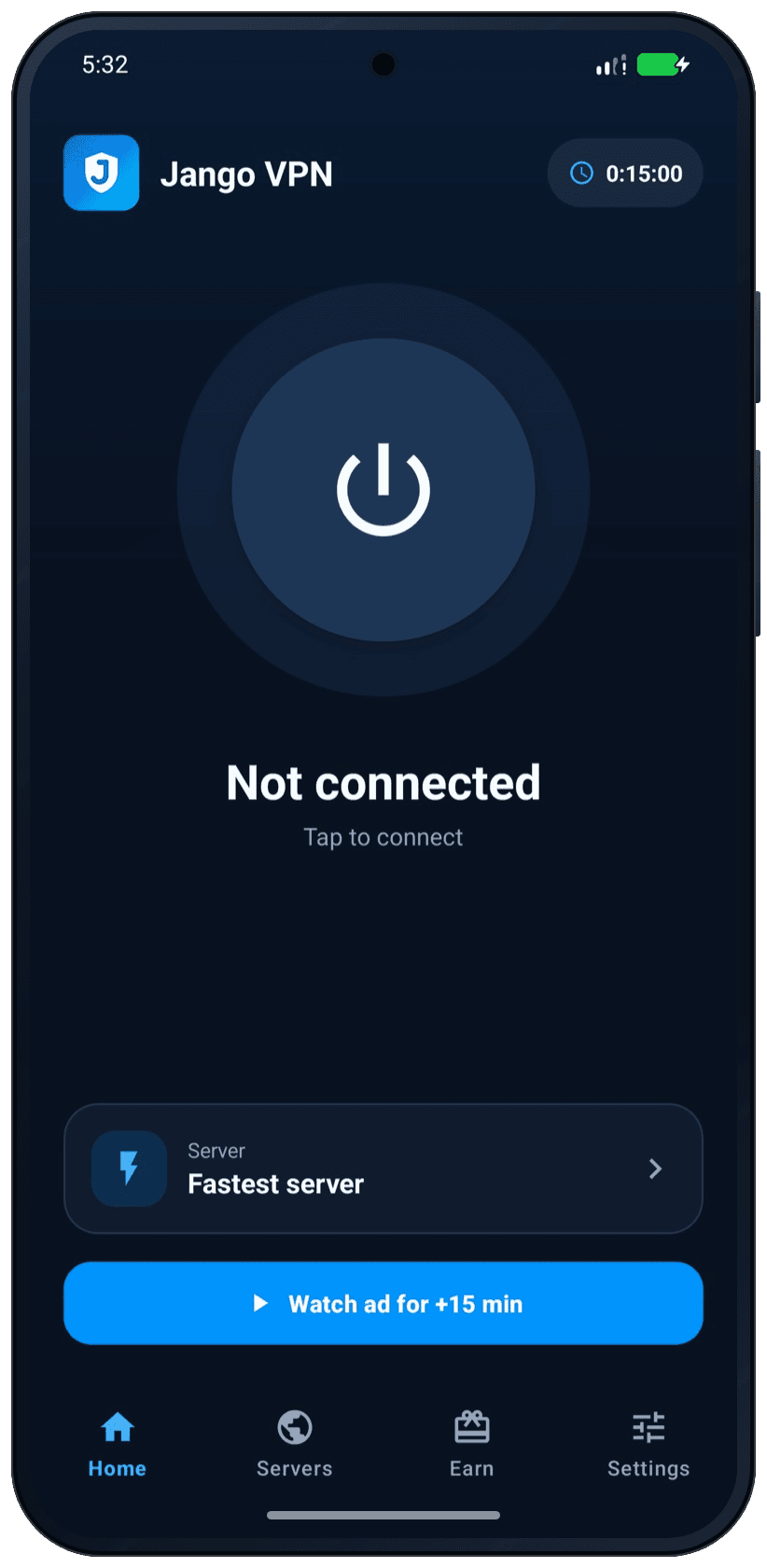
The home screen has one large power button. Tap it and Jango VPN sets up the tunnel for you. Unless you have chosen a country, the app uses “Fastest server” and picks a server by itself.
Why it helps
You do not need to know anything about VPN settings. The line under the button always shows where you stand: “Not connected”, “Connecting…” or “Protected”.
While you are connected, the home screen also shows the length of your session and the data you have downloaded and uploaded.
How to use it
- Open the app. The Home tab shows the power button, the status “Not connected” and the hint “Tap to connect”.
- Tap the power button. The first time, Android asks you to allow the VPN connection. What the app asks on first start
- When the status changes to “Protected”, you are connected.
- Tap the button again to disconnect. A tap while the app is still connecting cancels the attempt.
The VPN does not connect? Work through VPN not connecting on Android: fixes to try, or open Help.
Locations
Choose a country and keep your favorites on top
The Servers tab lists the countries you can connect through. Search finds a country by name, and a star marks it as a favorite. Favorites move to the top of the list.
Why it helps
Websites and apps see the address of the VPN server, so they see the country you picked instead of the place you are in. Favorites save you the scrolling when you switch between the same few countries.
A country in the list is not a promise that every site or service works through it. The countries on offer can also change. The list in the app is always the current one.
How to use it
- Open the Servers tab, or tap the “Server” row on the home screen.
- Tap a country to select it. To find one faster, type its name in “Search countries”.
- Tap the star next to a country to make it a favorite. Tap the star again to remove it.
- To let the app choose again, tap “Fastest server” at the top of the list.
If you pick another country while you are connected, the app moves your connection to it. The app remembers your choice for next time.
Split tunneling
Choose which apps skip the VPN
With split tunneling you pick apps that should not use the VPN. Those apps keep your normal connection. Everything else on your phone goes through the encrypted tunnel.
Why it helps
Some apps work better on your normal connection. A banking app may expect you in your own country. An app that controls a printer or a TV needs your home network, which cannot be reached through the VPN. With split tunneling you do not have to switch the VPN off for them.
How to use it
- Open Settings and tap “Split tunneling”.
- The app lists the apps on your phone. Switch on every app that should bypass the VPN.
- Disconnect and connect again. As the screen says: “Selected apps bypass the VPN on the next connection”.
The list and your choices stay on your phone. The Jango VPN app itself always stays outside the tunnel, so its ads load over your normal network. More in our guide to split tunneling on Android.
Auto-connect
Connect as soon as you open the app
With auto-connect on, Jango VPN starts the VPN when you open the app. You do not have to tap the power button.
Why it helps
It saves a step when you open the app only to switch the VPN on. Auto-connect is off until you turn it on, so nothing connects without your say.
How to use it
- Open Settings.
- Switch on “Auto-connect”. The line under it reads “Connect when you open the app”.
- The next time you open the app, it connects through your last choice: “Fastest server” or the country you selected.
Auto-connect acts at the moment you open the app, and only after you have allowed the VPN connection once. On the free plan it needs VPN time. If the VPN stops later, tap the power button to connect again.
Notifications
See your time left and disconnect from the notification
While the VPN is connected, Jango VPN shows a notification with the country you are connected through. On the free plan it counts down the time you have left. Its “Disconnect” button ends the connection without opening the app.
Why it helps
You can check from any app that the VPN is on, and how long it will stay on. Shortly before your free time ends, a time alert warns you. Its “Add time” button takes you to the Earn tab.
How to use it
- On Android 13 and newer, the app asks “Stay up to date?” after your first connection. Tap “Allow” to turn notifications on, or “Not now” to skip. On older Android versions they are on from the start.
- In Settings, “Connection notification” (“VPN status and time alerts”) switches this notification and the time alerts on or off.
- “Notifications” (“Reminders and service updates”) is a separate switch. It covers reminders that your free time is ready, and news about the service.
Notifications are optional. The VPN works the same without them.
Free plan
Free VPN time every day, and more when you want it
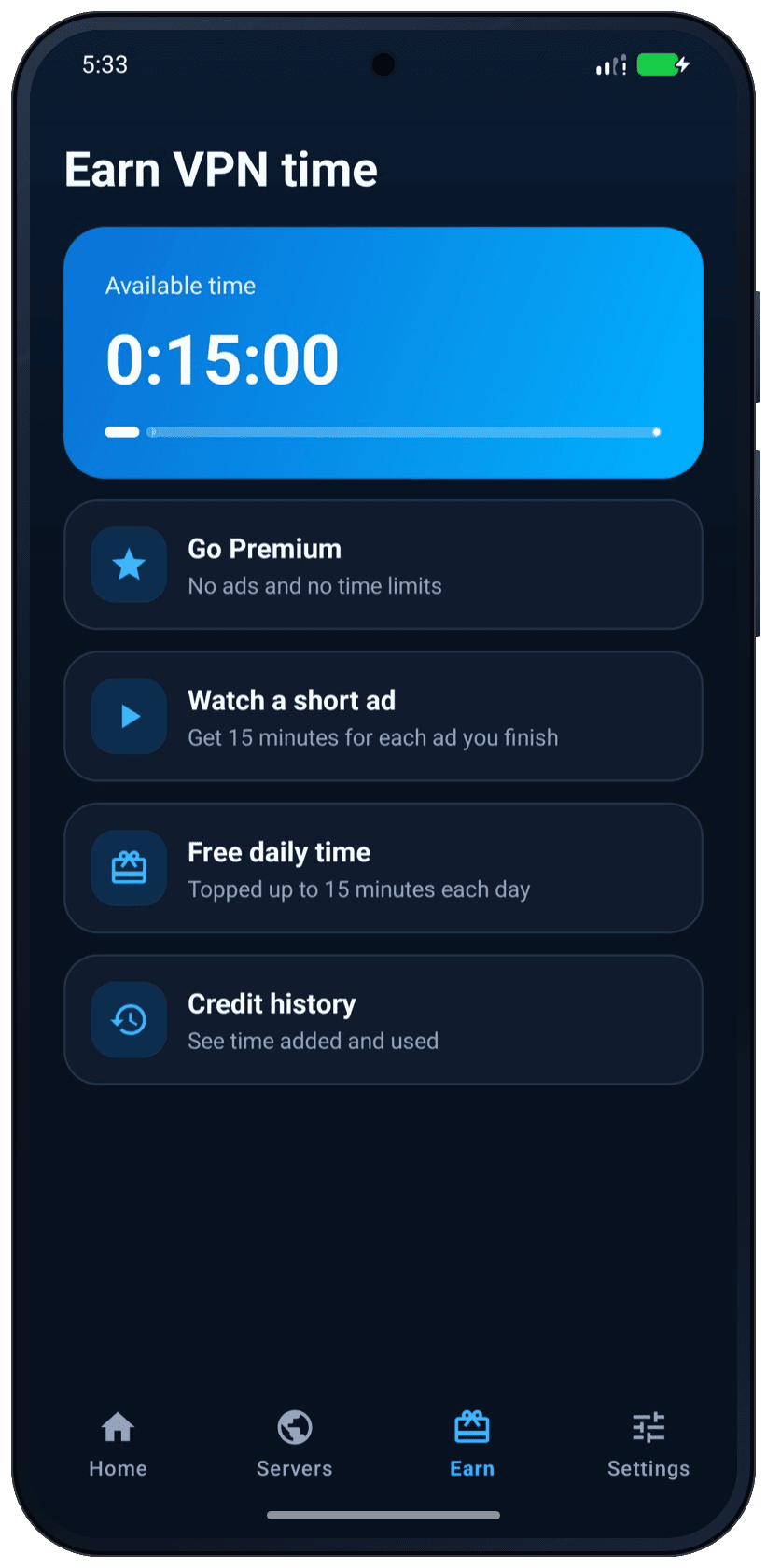
On the free plan you get VPN time every day, and the app tops it up by itself. The time only counts down while the VPN is connected. When you want more, you can watch a short ad to add time.
Why it helps
You can use the VPN without paying and without an account. Ads pay for the servers. The ad that adds time is always your choice: it plays only when you tap the button. Is a free VPN safe? explains how free VPNs are paid for, and what to check before you install one.
The limits, in plain words
- The daily top-up fills your time up to the daily amount. Unused free time does not pile up from day to day.
- There is a daily limit on the time you can earn from ads, and a maximum you can hold. When you reach a limit, the app tells you.
- When your time runs out, the VPN disconnects and your phone goes back to your normal connection.
- The amounts are shown in the app and can change. That is why this page gives no numbers.
About the ads
The free plan shows ads from Google AdMob: banners, full-screen ads, ads inside the lists of the app (marked “Ad”), and the short ads you choose to watch for more time. The Jango VPN app itself stays outside the tunnel, so its ads load over your normal network. Your other apps use the VPN.
Where the law requires your consent for ads, a form from Google asks for it. In that case Settings also shows “Ad privacy choices”, where you can change your decision.
How to use it
- Your time is shown at the top of the home screen, and as “Available time” on the Earn tab.
- To add time, open Earn and tap “Watch a short ad”, or tap the watch-ad button on the home screen. Watch the ad to the end and the time is added.
- “Free daily time” arrives by itself. You do not have to collect it.
You would rather have no ads and no timer? Premium removes both.
Languages
The whole app in 27 languages
Every screen of Jango VPN is translated into 27 languages. Four of them are written from right to left, and the app mirrors its layout for them.
Why it helps
An app that handles your connection should be easy to read. The status, the time you have left and the subscription terms are clearer in your own language.
How to use it
- The app starts in the language of your phone when it is one of the 27.
- To change it, open Settings and tap “Language”.
- Pick your language. Each one is listed in its own script, so you can always find yours. “System default” returns to the language of your phone.
All 27 languages
- English
- EspañolSpanish
- Português (Brasil)Portuguese (Brazil)
- FrançaisFrench
- DeutschGerman
- ItalianoItalian
- NederlandsDutch
- PolskiPolish
- TürkçeTurkish
- РусскийRussian
- УкраїнськаUkrainian
- العربيةArabic
- فارسیPersian
- اردوUrdu
- ਪੰਜਾਬੀPunjabi (Gurmukhi)
- پنجابیPunjabi (Shahmukhi)
- हिन्दीHindi
- বাংলাBengali
- Bahasa IndonesiaIndonesian
- Bahasa MelayuMalay
- Filipino
- Tiếng ViệtVietnamese
- ไทยThai
- 日本語Japanese
- 한국어Korean
- 简体中文Simplified Chinese
- 繁體中文Traditional Chinese
Appearance
Light and dark theme
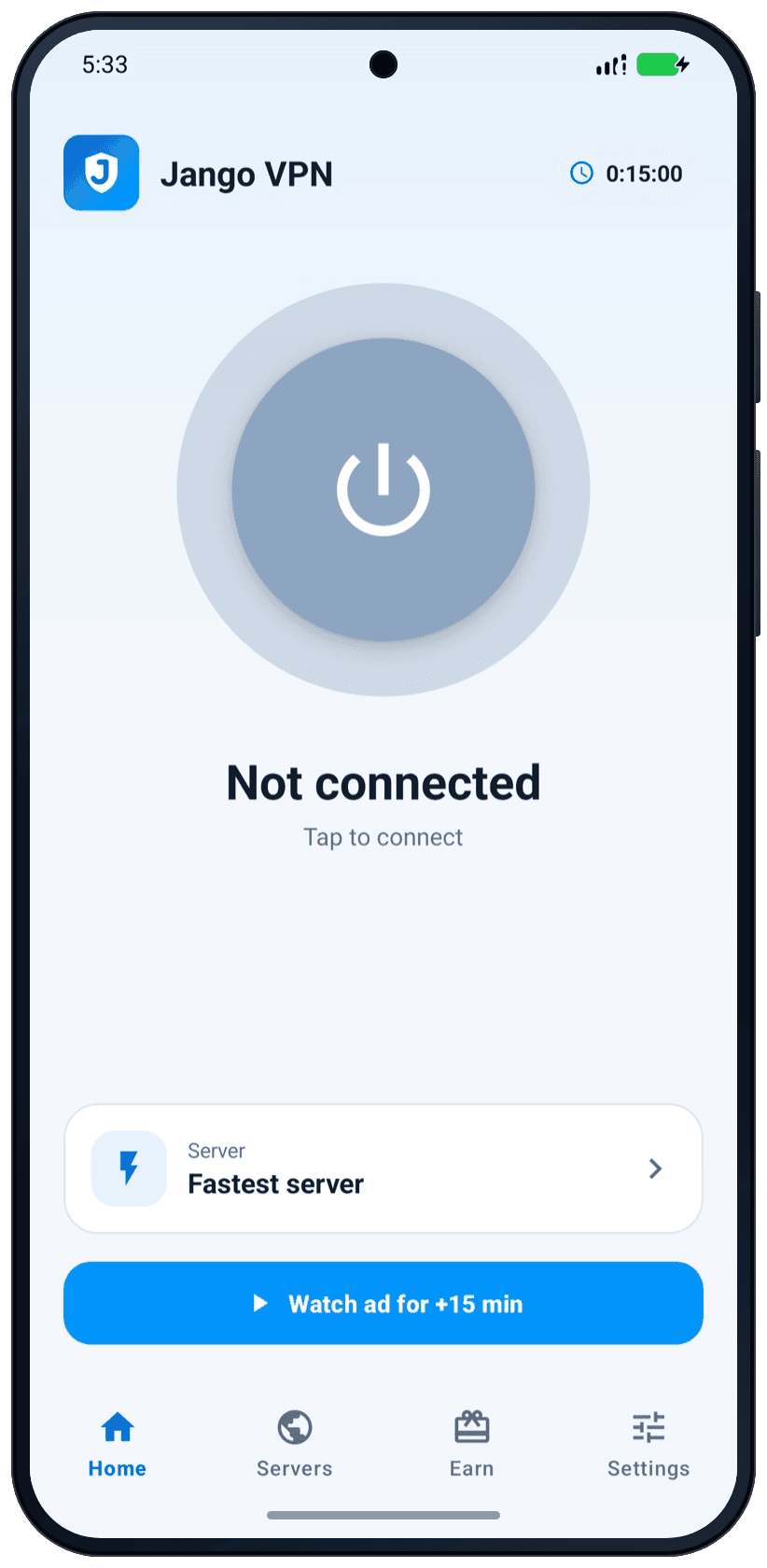
Jango VPN has a dark theme in deep navy and a light theme. The layout is the same in both: the same buttons in the same places.
Why it helps
Dark is easier on the eyes at night, and light is easier to read in bright daylight. Unless you change it, the app follows the setting of your phone and switches when your phone does.
How to use it
- Open Settings and tap “Appearance”.
- Choose “System default”, “Light” or “Dark”.
History and logs
Credit history and connection logs
“Credit history” lists the VPN time you received and used: welcome time, free daily time, ad rewards, time given by our support team and VPN use, each with its date. “Connection logs” is a technical record of what the app did, such as connection attempts and error codes.
Why it helps
The history shows where your time went. The logs help when something does not work: you can read them yourself, or send them to support so that nobody has to guess.
What the logs hold
The logs stay on your phone unless you share them, and they never include the sites or apps you use. The app keeps only its most recent lines. The Privacy Policy lists what they contain.
How to use it
- For the history, open Settings and tap “Credit history”. You can also open it from the Earn tab.
- For the logs, open Settings and tap “Connection logs”.
- “Share logs” sends them with an app you choose. “Clear logs” deletes them.
Something is not working? Start at Help, or write to us through the contact form.
No account
No account and no sign-up
Jango VPN has no accounts. There is no sign-up form, and the app does not ask for your name, an e-mail address or a password.
Why it helps
You can connect right after you install the app, and there is no password to forget. Passing the app on is just as simple: “Share Jango VPN” in Settings sends a friend a link to our download page. There is no invite code and nothing to register.
What “no account” does not mean
It does not mean that no data exists. To connect you, we keep a one-way hash of your device’s key, the ID of its VPN account and the time of the last connection request, and delete them after 24 hours without use. Google provides the ads, analytics and billing in the app. The Privacy Policy explains what is kept and for how long.
Premium is linked to the Google account you use in Google Play, not to an account with us.
How to use it
- Install Jango VPN from Google Play. It works on Android 7.0 and newer. How to install
- Read the three short intro screens and tap “Agree and continue”.
- Tap the power button.
What you need
- A phone with Android 7.0 or newer
- The app from Google Play
What you never need
- A sign-up form
- An e-mail address
- A password
Questions
Questions about the features
Short answers. Help has more.
Which VPN protocol does Jango VPN use?
Jango VPN uses the WireGuard protocol. It encrypts the traffic between your phone and our VPN servers. There is no protocol setting: the app sets everything up when you tap the power button.
Does Jango VPN have split tunneling?
Yes. Open Settings, tap “Split tunneling” and switch on the apps that should bypass the VPN. Your choice applies from the next connection. All other apps keep using the VPN.
Can I choose the country I connect through?
Yes. Open the Servers tab and tap a country, or search for it by name. If you do not choose, the app uses “Fastest server” and picks a server in the country nearest to you. A star marks a country as a favorite.
Does Jango VPN connect automatically?
It can. Switch on “Auto-connect” in Settings and the app connects when you open it. Auto-connect is off by default, and on the free plan it needs VPN time.
Which features are only in Premium?
None. Every feature on this page works on the free plan. Premium changes two things: it removes the ads, and it removes the VPN time limit.
Does the VPN cover every app on my phone?
While you are connected, your apps send their traffic through the tunnel, with two exceptions: the apps you chose in split tunneling, and the Jango VPN app itself. The app stays outside the tunnel so that its ads load over your normal network.
Do I need an account for any feature?
No. Every feature works without an account, an e-mail address or a password. Premium is linked to the Google account you use in Google Play.
Which languages does Jango VPN support?
The app is available in 27 languages: English, Spanish, Portuguese (Brazil), French, German, Italian, Dutch, Polish, Turkish, Russian, Ukrainian, Arabic, Persian, Urdu, Punjabi (Gurmukhi and Shahmukhi scripts), Hindi, Bengali, Indonesian, Malay, Filipino, Vietnamese, Thai, Japanese, Korean, Simplified Chinese and Traditional Chinese. You change the language in Settings, under “Language”.
Next steps
Install the app, or keep reading
Three pages that follow from this one, and guides that go deeper.
- How to installRequirements, three install steps and what the app asks on first start.
- Free and PremiumWhat both plans include, and how billing works through Google Play.
- HelpFixes for connection problems, and answers about free time and ads.
7 min read
What is WireGuard? A plain-language guide
WireGuard is a modern VPN protocol with a small code base and fixed encryption. Learn how it works, what it protects and where its limits are.
6 min read
Split tunneling on Android: what it is and when to use it
Split tunneling lets chosen Android apps skip the VPN while the rest stay inside it. See good uses, the risks, and how to set it up in Jango VPN.
6 min read
What a VPN hides, and what it does not
A VPN hides your traffic from the local network and your internet provider, and your IP address from websites. See who can still see what, and why.